
Emulator Guide
Not supported yet The emulator is currently not supported. Support is planned for a future release.
Overview
XCENA Emulator runs SDK applications in a Linux guest connected to a simulated XCENA CXL device. It supports software development and debugging without physical XCENA hardware. See Emulator Installation for host KVM checks and container setup.
graph TD
    subgraph QEMU
        CXLType3Device[CXL Type 3 Device]
    end

    subgraph GuestOS[Guest OS]
        Applications
        RootFileSystem[Root File System]
        Kernel
    end

    DeviceSimulator[Device Simulator]

    GuestOS <--> QEMU
    QEMU <--> |CXL packet| DeviceSimulator
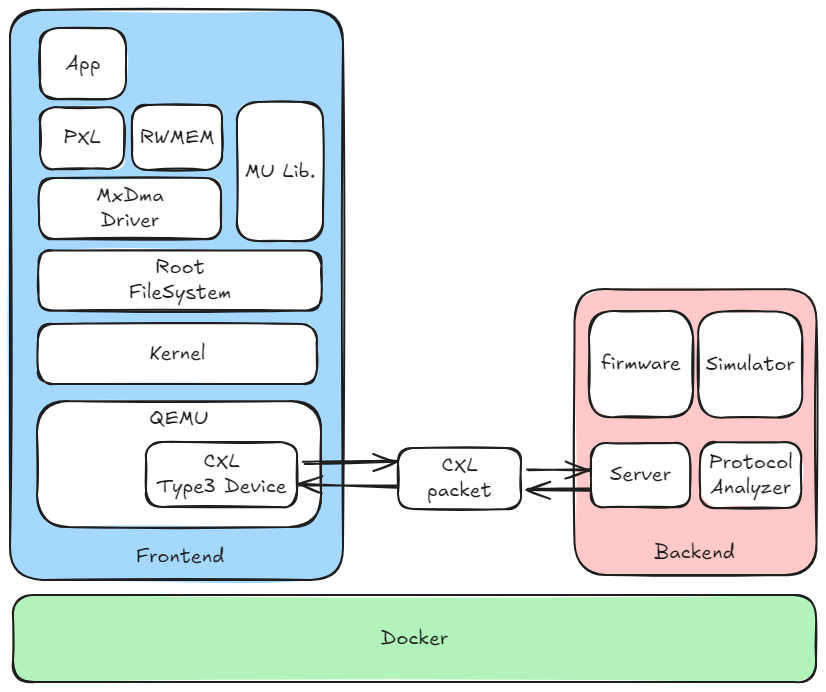
- QEMU runs the Linux guest and exposes a virtual CXL device. Device accesses are forwarded to the device simulator as CXL packets over a socket.
- Device simulator processes these requests and simulates device and firmware behavior. This socket connects software components; it does not require a physical CXL device.
Quick Start
- In a host terminal, check KVM with
kvm-ok, then create the container withdocker run -itas described in Emulator Installation. Keep this terminal open. - In the container shell, run
cd /work/emulatorand then./run.sh(./run.sh --no-kvmwithout KVM). With SDK images up to v1.5.0, the first launch in a new container can print nothing for several minutes. - When the guest prompt appears, check initialization and device detection before running SDK workloads.
- For another guest shell, run
docker exec -it xcena_sdk /bin/bashin a new host terminal, thencd /work/emulatorand./ssh.sh. - When finished, run
sudo shutdown -h nowin the guest shell and confirm that QEMU has exited.
Emulator User Guide
The run.sh script in the emulator directory provides a wrapper to launch the XCENA Emulator. This guide outlines available flags, usage, and examples.
Basic Usage
In the SDK container shell, run:
cd /work/emulator
./run.sh
By default, this starts QEMU with:
- Default QEMU binary
- Default kernel
- Ubuntu root filesystem
- One simulated XCENA CXL device; use
--numdevto select more
The following instructions distinguish four contexts:
- Host terminal: runs Docker or Podman commands.
- Container shell: runs
run.shandssh.shfrom/work/emulator. - Guest shell: runs SDK applications and Linux guest shutdown commands.
- QEMU monitor: accepts QEMU control commands at the
(qemu)prompt; it is not a Linux shell.
Available Options
| Option | Description | Default |
|---|---|---|
-d, --debug | Run QEMU with CXL debug logs | Off |
-q, --qemu <path> | Path to the QEMU directory | qemu |
-k, --kernel <path> | Kernel directory containing arch/x86/boot/bzImage | kernel |
-r, --rootfs <type> | Select rootfs/<type>/rootfs.qcow2; the packaged image provides ubuntu. Other types require a separately prepared compatible image | ubuntu |
-x, --cxl <file> | Path to CXL memory configuration file | Generated from the device configuration |
-p, --port <port> | SSH forwarding port in the container | generated automatically based on UID |
--no-kvm | Disable KVM acceleration | Off (KVM Enabled) |
--kgdb | Enable kernel debugging with GDB | Off |
-g, --gdb | Attach GDB to QEMU for debugging | Off |
-n, --numdev <number> | Number of CXL devices to attach | 1 |
--bg | Run QEMU in a detached GNU Screen session; requires screen | Off (foreground) |
--name <name> | Screen session name for --bg | qemu_$(whoami) |
-b, --backend <type> | Backend device type, not an executable or library path | mx1pquarter |
-f, --forward h:g ... | Replace TCP forwards with container:guest port pairs; include a pair to guest port 22 to use ssh.sh | SSH forward selected by UID |
--help | Show help message | - |
These are the commonly used options. -f replaces the default forwarding list with h:g pairs, where h is a port in the container (QEMU’s host side, not the machine running Docker) and g is a guest port. For example, -f 10000:22 20000:4567 retains guest SSH and forwards an application port. Choose unused container ports.
-p and -f each replace the whole forwarding list, so only the one given last takes effect. To change the SSH port and forward other ports, use -f alone with a pair to guest port 22 instead of combining it with -p.
Example Commands
1. Run QEMU with CXL debug logs
./run.sh --debug
2. Run QEMU without KVM acceleration
./run.sh --no-kvm
3. Run QEMU with 2 XCENA CXL devices
./run.sh -n 2
Additional Terminal Access
To open another guest shell while the container is running, open a new host terminal and enter the container. Replace xcena_sdk with your container name:
docker exec -it xcena_sdk /bin/bash
For a container started with Podman, use podman exec -it xcena_sdk /bin/bash instead (substitute the name you used at creation).
Then, in the container shell, connect to the guest:
cd /work/emulator
./ssh.sh
This requires the guest to be running with SSH available. The helper uses the SSH port saved by run.sh in this emulator directory. If multiple instances are in use, verify that the directory and saved port belong to the intended instance before connecting or shutting it down. Do not rerun run.sh merely to open another shell.
Before running SDK workloads, follow the guest initialization and device checks, even if SSH is already available.
If the original terminal was closed
Closing the terminal window where docker run -it is running stops the container itself, and QEMU is killed without a guest shutdown. To leave that terminal while keeping the container running, detach first by pressing Ctrl-P then Ctrl-Q.
After the original terminal is lost, check the container status in a host terminal:
docker ps -a --filter name='^xcena_sdk$'
If STATUS is Exited, docker exec cannot enter the container. Restart and enter it with docker start -ai xcena_sdk, as described in Emulator Installation, then launch the guest again with ./run.sh in /work/emulator. If the container is running but SSH fails, check whether the intended QEMU process is still running in the container and whether the guest has finished booting before attempting a restart.
Recover the original foreground console
If QEMU is still running but SSH is unavailable, docker attach xcena_sdk in a host terminal can recover its console when run.sh was launched from the original interactive container shell. It attaches to the container’s original terminal; it cannot recover a QEMU terminal created through a separate docker exec session or a detached Screen session. Use podman attach xcena_sdk for Podman.
With Docker’s default detach keys, press Ctrl-P then Ctrl-Q to detach while leaving the container running. Ctrl-C does not detach or stop QEMU; it is passed to the guest console and interrupts the command running there. If the console cannot be recovered and the guest does not respond to SSH, see Terminate an unresponsive QEMU process.
Switching Consoles
The original run.sh terminal shares input between the guest serial console and the QEMU monitor. Press Ctrl-A, release the keys, then press c to switch between them. If no prompt appears, press Enter. The monitor prompt is (qemu); use the same key sequence to return to the guest console.
These keys apply to the original QEMU terminal, not an SSH guest shell.
Background Mode with GNU Screen
To start in the background, run ./run.sh --bg in the container shell instead of the foreground launch command. The container must remain running. In the same emulator directory, inspect and attach to the saved session:
cat run.sh.screen
screen -ls
screen -r "$(cat run.sh.screen)"
Verify that the saved name belongs to the intended instance before attaching. Screen also uses Ctrl-A: with default bindings, press Ctrl-A, then a, then c to switch QEMU consoles. Press Ctrl-A then d to detach from Screen without stopping the guest.
Use the normal guest shutdown procedure below. kill_bg.sh applies only to --bg sessions and terminates Screen directly; it is not a normal shutdown method and cannot stop a foreground launch. Its printed message alone does not confirm QEMU has exited.
Do not launch multiple instances from the same emulator directory: run.sh overwrites shared port/session files and uses the same guest disk. Separate instances require separate disks and state directories, distinct ports, and, with --bg, distinct --name values. The default Screen session name is the same for every instance started by the same user (qemu_root in the container), so screen -r and kill_bg.sh cannot tell them apart.
Exiting the Emulator
Normal guest shutdown
In the guest shell, including a guest shell opened through ssh.sh, run:
sudo shutdown -h now
Run this inside the guest OS, not on the host or in the container shell. It allows the guest to stop services and unmount its filesystems before powering off.
To restart the emulator, shut down the guest, confirm QEMU has exited, then run ./run.sh again with the same options. Do not reboot the guest with sudo reboot or with system_reset at the QEMU monitor. After a guest reboot, the guest can fail to find the emulated CXL device registers, and no XCENA device is available until QEMU is restarted.
Alternatively, enter the following at the QEMU monitor prompt:
system_powerdown
This requests a guest shutdown through the virtual power button. It depends on the guest responding; it does not guarantee that shutdown has completed.
Confirm shutdown
In the original terminal, check for the guest’s final power-off message and QEMU exiting back to the container shell. An SSH disconnect alone is not proof of a completed shutdown.
If the original terminal is unavailable, use a separate container shell to inspect the QEMU processes:
ps -ww -eo pid,args | grep '[q]emu-system-x86_64'
Identify the intended instance by its disk path and forwarded SSH port. After a normal shutdown request, confirm that this process has exited. A remaining container or another QEMU process does not mean that the intended guest is still running; process exit alone also does not distinguish a clean shutdown from a crash.
Direct QEMU termination
Ctrl-A followed by x, or quit at the QEMU monitor, exits QEMU without a clean guest OS shutdown. Reserve direct termination for an unresponsive guest or other cases where data loss is acceptable.
Stopping the container while the guest is running has the same effect: docker stop, exiting the container’s main shell, closing the terminal window where docker run -it is running, or restarting the host kills QEMU and can lose recently written guest files. Shut down the guest and confirm QEMU has exited before stopping the container. Shutting down the guest does not require stopping the container.
If neither SSH nor the console is available, see Terminate an unresponsive QEMU process.
Troubleshooting
Terminate an unresponsive QEMU process
If neither SSH nor the console is available, use the process listing from Confirm shutdown in a container shell to identify the intended QEMU instance by its disk path and forwarded SSH port. Then enter only that process’s PID:
printf 'PID of the QEMU instance to terminate: '
read -r QEMU_PID
Check that the PID belongs to a QEMU process and show its command line. The check clears the PID if it does not:
if [[ "$QEMU_PID" =~ ^[1-9][0-9]*$ ]] && [[ "$(ps -o comm= -p "$QEMU_PID")" == qemu-system-x86* ]]; then
    ps -ww -p "$QEMU_PID" -o pid,args
else
    echo "PID $QEMU_PID is not a running QEMU process."
    unset QEMU_PID
fi
Only if the command line shows the intended instance, terminate it:
kill -TERM "${QEMU_PID:?No QEMU PID passed the check}"
This sends a termination signal to one process; it is not a guest shutdown request. Recheck the process listing afterward. Do not terminate other instances or start another QEMU process against the same disk while the original process is still running.